Showing posts with label Security. Show all posts

Security: Computer Viruses Part II

This is the second and concluding part of my earlier post - "Security: Computer Viruses Part I", wherein I had discussed about the various types of computer viruses that are moving around just waiting for an opportunity to get into and infect your computer. For those who missed the first part, they can find it here.

In this post, I will be discussing some of the symptoms that will help you identify whether your are actually bugged and also what steps to take after the infection has been done.

Let me start with this - How would you come to know that you have been infected by a virus (biologically, I mean)? Obviously you would say there are always certain symptoms that will surface up and it will be only then that I would need to consult a doctor. The doctor will recommend some tests to perform and these will help the doctor in finding out what Virus I have been affected with and what should be the medicines that will help me get rid of the Virus Infection.

In the world of computers too, this is what the approach is. You have to look out for certain symptoms which will give you a hint that your computer has been bugged. Once you are sure of, you will need the services of a doctor (which again is a computer program)  that will help you out in tracing the exact virus. Once you know what the Virus is you can take an appropriate step to get rid of the virus.

Symptoms
Well, after using computers for about over 16 years, I have realized that finding out whether your system has been bugged or not is not that easy. However, there are some common traits that become eventually visible after infection –
  1. The computer runs slower than usual.
  2. The computer stops responding, or it locks up frequently.
  3. The computer crashes, and then it restarts every few minutes.
  4. The computer restarts on its own. Additionally, the computer does not run as usual.
  5. Applications on the computer do not work correctly.
  6. Disks or disk drives are inaccessible.
  7. You cannot print items correctly.
  8. You see unusual error messages.
  9. You see distorted menus and dialog boxes.
  10. There is a double extension on an attachment that you recently opened, such as a .jpg, .vbs, .gif, or .exe. extension.
  11. An antivirus program is disabled for no reason. Additionally, the antivirus program cannot be restarted.
  12. An antivirus program cannot be installed on the computer, or the antivirus program will not run.
  13. New icons appear on the desktop that you did not put there, or the icons are not associated with any recently installed programs.
  14. Strange sounds or music plays from the speakers unexpectedly.
  15. A program disappears from the computer even though you did not intentionally remove the program.
These are a few of the common symptoms that will indicate that your computer is bugged.

Oh no, My Computer is been Infected…. How Do I Cure my Computer?
Once you are sure that your computer has been bugged, you will need a doctor for finding out and curing the virus. The doctor for a computer virus is a software program called Anti-Virus Software. There a many brands available in the market.
Some of the anti virus programs
  1. Bit-Defender
  2. Kaspersky
  3. Webroot
  4. Norton
  5. AVG
  6. F-Secure
How Do I Select An Anti Virus?
The Anti Virus programs available in the market must be capable of being good doctors. In the sense they must be able to perform the following basic tasks -
  1. Help you in correctly Identifying the Virus
  2. Curing or getting rid of the Virus
  3. Have an online update feature with them so that they are always up-to-date with the latest virus programs that get written and also be able to cure them.
  4. Provide support and protection when you are online and connected to the Internet
  5. Read reviews at technical / review websites
  6. Consult your friends, colleagues and others if you are unsure.
Where do I get the Anti-Virus?
In the current scenario where software Piracy is on the rise, I would recommend you to go for a genuine copy for your anti virus software. This is because of the reason that it is your computer and your precious work is at stake. So do not compromise, even if you can get a copy for free or otherwise. In case your copy is genuine, you will benefit from the regular updates that will be launched by the vendor. You will also feel safe and secure. Keep in mind that the amount of investment that you are going to make is for one year and during this you are entitled to get all the new updates, new definitions and many a times some free upgrades.

Some Preventive Measures
Lastly, as they say, Prevention is better than cure, I would recommend youto do at least the following to keep yourself safe while using your computer -
  1. Enable the Email Scanning setting of your Antivirus. This will help your computer stay clean from getting infected via the emails.
  2. Scan all the external devices, like USB Drives, Floppies (does anyone use them anymore?) that you attach to your computer. Make it a regular habit or better, if your anti-virus program supports this, configure it to auto protect you.
  3. Stay away from porn websites, online gaming sites. These sites are the potential threats of getting infected via the internet. So it is better to stay away from them. I know many of you would be wondering Oh My God I have been playing online games...? Its alright, what I am trying to convey is just keep yourself protected. Have an antivirus that will provide you with protection.
  4. Keep a regular backup of all the work that you do on the computer. This is beneficial in case the worst happens and you lose all your data. I keep a monthly backup.
  5. Run a full computer scan at least once per Week. This is to keep your system clean from infections.
  6. If your Anti-Virus supports - Set the Update feature to at least daily. This keeps your Antivirus up-to-date.
Sources:Microsoft, TopTenReviews, PCAntiVirusReviews

Hope that this post was useful to you. I welcome your feedback and suggestions as always.

The first part of this article is here - Security: Computer Viruses Part I


Cheers


Security: Computer Viruses Part I


“I think computer viruses should count as life.  I think it says something about human nature that the only form of life we have created so far is purely destructive.  We’ve created life in our own image.”
– Stephen Hawking

Virus is a term that was mostly used in a biological sense till 1971. I do not know if the Virus is used as an acronym or not but I have been using it as an acronym for "Very Important Resources Under Siege" where very the important resources are the resources on my Computer and they get affected.

History of Computer Virus


The Creeper virus was first detected on ARPANET, the forerunner of the Internet in the early 1970s. Creeper was an experimental self-replicating program written by Bob Thomas at BBN in 1971.

A program called "Rother J" was the first computer virus to appear "in the wild" — that is, outside the single computer or lab where it was created. Written in 1981 by Richard Skrenta, it attached itself to the Apple DOS 3.3 operating system and spread via floppy disk.

The first PC virus in the wild was a boot sector virus dubbed (c)Brain, created in 1986 by the Farooq Alvi Brothers, operating out of Lahore, Pakistan, reportedly to deter piracy of the software they had written.

What Is a Computer Virus?

 
A Computer Virus, as is clear from the origins, is a piece of software or code that gets loaded on your computer without your knowledge and permission and runs against your wishes. Computer Virus, like its biological counterpart, has the ability to replicate itself. A computer virus can damage or corrupt data, change data, and even degrade the performance of your system by utilizing resources such as memory or disk space.

Why are the Virus Programs Written?

 
You might be wondering that if the Computer Virus is a piece of code then why does one writer such a code that will do bad or bring harm to the computer it infects. There are various reasons that people write codes that create computer virus.

At the start, it was more of an experimentation, but now a days, it is become the handiwork of a few people who are perverts and do not feel happy till they have written a program which will cause damage.


The other reason may be the rejection of the coder in some company and he is out there just to tell to the world - "I can do this".

There is another belief that for the good to be proven there must exist the evil. For the Anti-Virus Companies to survive, the computer virus must exist and so a set of the community even believes that these companies intentionally keep creating computer virus so that their products remain in the market.

Whatever be the motivation behind the creating of the code, the fact is that the computer virus is a reality and it is quite lucky of you in case you have never been affected by one.

How Does a Virus Spread?

Early viruses were small pieces of code embedded in larger, legitimate programs like your favorite game or word processing package or any application that was assumed to be popular and widely used. When the user ran the legitimate program (which was bugged), the virus loaded itself along with the original code of the application into the main memory of the computer ­ and looked around to see if it could find any other program to get attached to. If it found one, it had the capacity to modify the program and get itself attached to the code of the clean and legit application. So the next time you started the cleaner application that had got affected gave the virus a chance to spread to other applications.

Once in the memory, the virus launches the "real program", which actually does the major damage.

Types of Computer Virus

 
There are different types of virus that exist in the computer world. In the initial days, the Internet was not that popular and as such the Virus programs spread only via the usage of storage media like floppy disks. But since internet became popular, people have started creating virus that spread via the internet.

1. Boot Sector viruses:

A boot sector virus infects diskettes and hard drives. Not getting into the technical structure of Disks, the base concept involved here is that the Virus program attaches itself to the Boot sector – The Main part of the Disk that is used to load the operating system.
Modus operandi
Each time you start your computer; this virus gets loaded into the Memory of your computer and then starts its play damaging files and folders including its own replication.

2. Program viruses:

The program viruses affect Application files only and hence are called Program Viruses.
Modus Operandi
A program virus infects only the executable and binary files. They become active when the program files (usually with extensions .BIN, .COM, .EXE, .OVL, .DRV) carrying the virus is opened.

3. Multipartite viruses:

The multipartite generation of Computer Virus is a hybrid of Boot and Program viruses.
Modus Operandi – 
They start by infecting the program files and when the infected program is executed, these viruses infect the boot record.

4. Stealth viruses

Stealth viruses are considered to be the smart viruses. This is because they use techniques to avoid getting detected. Their mode of operation also is varied but in most of the cases, they either redirect the disk head to read another sector instead of the one in which they reside or they alter the reading of the infected file’s size shown in the directory listing. This makes their detection a difficult one. They can stop you from accessing files and also can corrupt your data.

5. Macro viruses:

A macro virus infects the macros within a document or template. Macros are usually written in applications to perform a specific task quickly. The macros are mostly stored in documents or their templates. So when you open the document or the template, the macro virus is activated and it infects the templates.
Modus Operandi – 
A macro virus attaches itself to the Macros for spreading. Then when the file is opened, it attaches itself to the Template. So the next time you open any document or create any document based on this template, the virus automatically gets transferred,

6. Next Generation
6.1 Worms
A worm is a computer program that has the ability to copy itself from machine to machine. Worms use up computer time and network bandwidth when they replicate, and often carry payloads that do considerable damage. A worm usually exploits some sort of security hole in a piece of software or the operating system.
Worms normally move around and infect other machines through computer networks. Using a network, a worm can expand from a single copy incredibly quickly.


6.2 Trojans or Trojan Horses
Another unsavory breed of malicious code are Trojans or Trojan horses, which unlike viruses do not reproduce by infecting other files, nor do they self-replicate like worms. They are programs which claim to do one thing (it may claim to be a game) but instead do damage when you run it (it may erase your hard disk). Trojan horses have no way to replicate automatically.

6.3 Logic Bombs
Logic Bombs are not considered viruses because they do not replicate. They are not even programs in their own right but rather camouflaged segments of other programs.

6.4 MalWare
Malware is just another name for software that has an evil intent. Here are some common types of malware and what they might do to your infected computer:

  • Adware puts ads up on your screen.
  • Spyware collects personal information about you, like your passwords or other information you type into your computer.
  • Hijackers turn your machine into a zombie computer.
  • Dialers force your computer to make phone calls. For example, one might call toll 900-numbers and run up your phone bill, while boosting revenue for the owners of the 900-numbers.
In the next part of the post, you will find information on how to prepare yourself for preventing a virus attack, how to know whether your computer is bugged and also how to remove virus in case your computer has already been bugged.


Hope you found the article of use. 
Cheers


Securing Your Computer – Internal Security: Part II

In the last post, I had discussed how you can create users on your Windows XP Operating System. In this post I will be telling you how to protect your files, folders and even disk drives from being accessed by the other users of your computer.

As of now, you must have realized that merely creating different categories of users on the system does not implement much of the security. Its only that some tasks like formatting etc. are restricted.

STEP I: Getting The Security Tab
To implement the complete security features, you will need to make the Security Tab available in the properties of your drives, folders and files.

Under normal situations, Windows XP does not display the security tab when you right click and select properties for any Disk Drive or Folder or File on your Computer. To get this tab appear on the dialog box this is what you need to do

To enable and disply the Security Tab
  1. Click Start, and then click Control Panel.
  2. Click Appearance and Themes, and then click Folder Options.
  3. On the View tab, under Advanced settings, clear Use simple file sharing [Recommended].

Once you are done with this you will get to see the Security Tab in the Properties dialog box for every Disk Drive, Folder and File.
STEP II: Setting up the access permissions
Access control is the process of authorizing or restricting users, groups, and even computers (on a network) to access objects like Disk Drives, Folders, Files and other resources on the computer (or network).

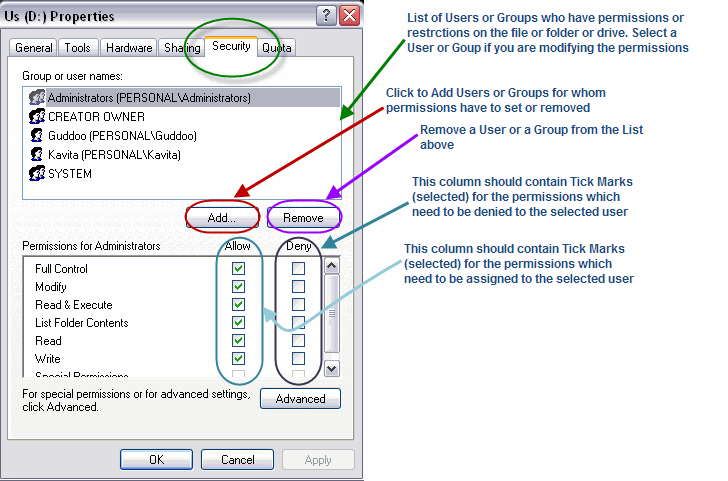
Right click on the object for which you want to set the permissions. (I have used the D: partition of my Disk for this example). From the menu that pops up, click on the Properties option to display the Properties Dialog box for the object. Here, select the Security Tab.


On the security tab, you would find the list of users and groups who have been assigned or restricted on the selected object. 

"The Everyone Group":When you are changing the security for any folder or file for the first time, you will find a Group by the name “Everyone” in the list. If you select it you will find all the permissions that are assigned to this group for this object. The Everyone Group refers to all the users of the computer, as the name indicates. So, you can start by removing the Group from the list. To do so, select the Group and click on Remove. Once this is removed, the next task is to add up the users who will be granted the Access or Denied the Access. 

To Add a user in the list, Click on the Add Button. This will display the Add User or Group Dialog Box. 


Click on the Advanced Button to display another dialog box where you can find a list of all available users and groups on the system.

On this Dialog box, click on the Find Now Button to display the list of Users and Groups. Select the user or group to whom the permissions are to be given or denied. Click on OK to return to the above dialog which should display the name of the selected user or group. On this dialog, click OK to add the user or group in the Security Dialog.

Once back on the Security Tab
  • Select the User you have just added.
  • Use the Checkboxes under the Assign Column to Assign the permissions or under the Deny Column to Deny the Permissions.
Once done with the permissions, click OK.
Your Permissions for the file or folder are set and the user will or will not be able to access the contents depending upon the permissions you have just set.

Hope that you find this post useful. Looking forward to your comments and feedback.

Cheers.

Securing Your Computer – Internal Security : Part I

Do you have a PC or Laptop at home which is accessed by others? Well, I have a Computer at home which is used by many including me, my wife and even my students who come to me for getting trained in various computer subjects.

Do you have files on your computer that you do not want others using your computer to access?

Well, well. Microsoft’s Windows XP comes with tools that allow you to implement user level security and the best part is that you do not have to be a geek to get those features implemented.

This is a two step process and here is the first step (the second step will be available in the next post) –

STEP I: Create different Users on the Operating System.

Windows XP supports three different kinds of users on a system –
  • The Administrators – They are the users who have full control on the computer and can access any file or device on the Computer.
  • The Restricted User – These are the users who can create files, use applications installed but cannot install new software or format drives. As the name suggests, they have a restricted access to the resources on the computer.
  • Guests – These are the occasional users who are allowed to create files but these files do not get permanently stored on the computer.
To create a new user follow these steps

  1. Open the control panel. The control panel can be opened using the start menu on Windows XP.
  2. Once inside the Control Panel, open the User Accounts Applet. The user Accounts Applet will allow you to create or modify user accounts.
  3. If you want to create a new User then select the Create A New Account button on the Applet.
  4. In the dialog box that follows, type in the name of the new user. Ensure that this name is unique as this will be used to access the Windows User Account.
  5. Then click on the Next button. In the screen that follows, specify what type of account this new account will be – An administrative account or a limited / restricted account. I would suggest that you create all other accounts except yours as Limited Accounts as this will ensure safety of all your files and data.
  6. Once done, click the create account. This will get the account created. 
The purpose of this process was to create the new user accounts. So far, so good.

What is required next is the 2nd level of security to be implemented. If you do not follow the steps described below, anyone can click your username when XP starts and get access to the files and data that you did not want to share. So here is the 2nd level of steps –
Once the New Account is created, it will be displayed on the User accounts Applet.


Select the newly created account to go the page which will allow you to manage the account.


Use the options in the dialog box as described –
  •     Change the Name: This option will change the name of the user account. It asks you to enter a new name for this User Account
  •     Create a Password: This is the most essential step. You must provide passwords for all the accounts you create. This will prevent unauthorized persons from accessing your computer.
  •     Change the Picture: This option will change the Picture or Image or Avataar for the Account. The Avataar is normally displayed at the Login page of Windows XP.
  •     Delete the Account - This will delete or remove the user account.
Once done with the above steps, restart your computer to find the changes.

The major change that you should have found is that now windows displays a lot of icons on the login page where each of the Icon is followed by the User Account Name that you create.

In the next post, I will mention about the next part – How to secure your files from the multiple users that you have created in this session.
As ususal, I welcome any suggestions or queries. Please feel free to provide your feedback!!!

Cheers.

Spread the Word


Followers